How to Contact Google About a Review

A single bad review can sit at the top of your Google Business Profile for months if you do not know how to handle it. Some reviews are genuine complaints you need to address. Others are fake, abusive, or written by someone who never used your business at all.
Knowing how to contact Google about a review the right way can be the difference between a quick removal and weeks of frustration. This guide walks through every legitimate channel Google offers, what to expect at each stage, and what to do when the standard process does not work.
If you have already tried correcting a Google review you already posted and are now dealing with someone else’s review about your business, the process below is built specifically for that situation.
Key Takeaways
- Google does not let you email a person directly about a single review. You contact Google through its built in reporting tools first.
- Reporting a review is anonymous. The reviewer is never told who flagged their content.
- Most review reports take between three and twenty business days to resolve.
- Google only removes reviews that violate its content policies. It will not remove a review simply because it is negative.
- You get one appeal per rejected report, so it needs to be strong.
- If flagging and appealing both fail, Google Business Profile support offers chat, phone, and email options.
Understanding What Google Will and Will Not Do
Before you spend time contacting Google, it helps to understand the boundary Google draws around reviews.
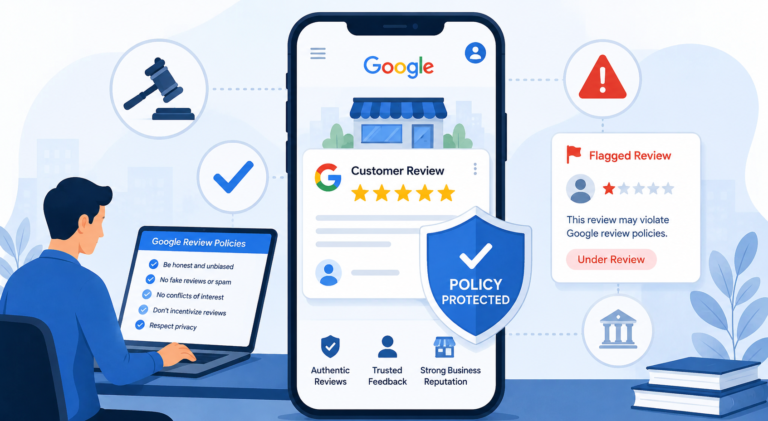
Google’s own support documentation is direct about this. You can report any review, but only those that violate Google policies are eligible for removal. Reviews that reflect a genuine customer experience, even a negative one, are left in place. Google does not get involved in a dispute between a business and a customer over whether the service was actually bad.
This matters because many business owners waste their first report on a review that is simply unflattering rather than policy violating. A three star review complaining about slow service is not removable. A five paragraph rant from someone who has never set foot in your business, or a review containing hate speech, threats, or blatant advertising for a competitor, is a different story.
Reviews That Typically Qualify for Removal
- Spam or fake content not based on a real experience
- Reviews posted by a current or former employee about their own employer
- Off topic content unrelated to the actual business
- Hate speech, harassment, or threats
- Sexually explicit material
- Conflict of interest reviews, such as a competitor posting negative feedback
- Content promoting illegal activity
Reviews That Typically Do Not Qualify
- A customer being unhappy with pricing
- Slow service or a scheduling issue
- Comments about staff attitude that are rude but not abusive
- Reviews that are simply negative in tone
Step by Step: How to Flag a Review on Google
The first and most important step is flagging the review directly. This is free, takes a few minutes, and starts the official review process.
Step 1: Go to Your Business Profile
Sign in to your Google Business Profile account. You can also find your listing through Google Search or Google Maps if you are managing it from a mobile device.
Step 2: Open the Reviews Section
Select Reviews from the left hand menu on desktop, or tap your profile picture and choose Reviews on mobile.
Step 3: Locate the Review in Question
Scroll through your review list until you find the specific review you want to report.
Step 4: Click the Three Dot Menu
Next to the review, click the three vertical dots. Select Report Review or Flag as Inappropriate depending on which option appears for you.
Step 5: Choose the Correct Violation Reason
Google will present a list of reasons such as spam, conflict of interest, off topic content, or illegal content. Pick the reason that most accurately matches the issue. Choosing the wrong category can slow down or hurt your case, so read each option carefully before submitting.
Step 6: Submit the Report
Click Send Report or Submit. Your report is now anonymous. The reviewer is never notified that a report was filed, and Google does not disclose who submitted it.
Step 7: Wait for Google’s Decision
Review evaluation typically takes several days, though Google’s own guidance and third party sources both note that timelines commonly stretch from five to twenty business days depending on volume and complexity.
How Google Actually Reviews Your Report
Once submitted, your report does not disappear into a void. It enters a moderation queue where Google runs it through an initial automated screening for obvious violations like profanity or spam patterns. Cases that are not clear cut get passed to a human moderator who checks the review against Google’s content policies in detail.
You will only hear back from Google during this window if they need additional information from you. If your email address is on file, Google may reach out for clarification, but it will not share your identity with the reviewer or the business being discussed if you filed as a third party.
What to Do While You Wait
The waiting period is often the hardest part. Here is how to use it productively instead of refreshing your dashboard every hour.
Respond publicly and professionally. Even if you believe the review is completely fake, write a calm reply. Something like “We have no record of this experience under this name. We have reported this review to Google for investigation” signals to future customers that you take feedback seriously without escalating the conflict.
Document your evidence. Save screenshots, timestamps, and any communication that supports your claim that the review violates policy. If Google later asks for more information, you want this ready immediately.
Check your status through the Reviews Management Tool. This tool lets you see whether your report is still pending, has been resolved, or requires further action from you.
Avoid contacting the reviewer directly. Confronting a reviewer, even privately, rarely helps and can sometimes make the situation worse if it becomes part of the public record.
What If Google Rejects Your Report
Rejection is common. Google’s algorithms lean toward preserving free expression, and several industry sources estimate that a significant majority of review removal requests are denied on the first attempt.
If your report comes back as “no policy violation found,” you are not out of options.
Step 1: File an Appeal
Through the Reviews Management Tool, locate the rejected report and select Appeal Decision. Explain clearly why you believe the review still violates policy, and attach any new evidence you have gathered. Google generally allows only one appeal per review, and that second decision is final, so make it count.
Step 2: Strengthen Your Evidence
If you resubmit or appeal, be specific. Reference the exact policy clause you believe was broken rather than simply restating that the review is unfair.
Step 3: Contact Google Business Profile Support Directly
If the appeal is also denied, or if you need to speak with an actual person, Google offers direct support channels through your Business Profile Manager.
- Log into your Google Business Profile Manager.
- Click Support in the bottom left corner.
- Select the issue category, such as review management or negative review removal.
- Choose your preferred contact method.
Google typically offers three ways to reach a live representative:
| Contact Method | Best For | Speed |
|---|---|---|
| Chat | Quick clarifications and status checks | Fastest |
| Phone Call | Detailed explanations that are easier to talk through | Moderate |
| Providing documentation and evidence in writing | Slower but thorough |
Availability for chat and phone support can vary by region and time of day, so if one option is not immediately available, try again later or use the email route in the meantime.
Special Situations
Extortion Attempts
There has been a rise in scams where someone posts multiple negative reviews and then contacts the business through messaging apps demanding payment to remove them. Google has a dedicated Merchant Extortion Report Form for exactly this scenario. If this happens to you, do not pay. Document every message and file the report immediately.
Reviews from the European Economic Area
Merchants in the EEA have an additional option to report certain third party reviews directly through expanded tools required under regional regulation. If your business operates in this region, check your Business Profile support page for region specific reporting options.
Locked or Inaccessible Business Profiles
If you cannot log into your Google Business Profile at all, perhaps because a former employee or agency set it up, you will need to go through Google’s ownership request process before you can manage reviews. This can take about a week. While waiting, you can still flag reviews directly from Google Maps without needing to be logged into the business account.
Reporting a Reviewer’s Account
In cases of repeated abuse from the same account, you can report the user profile itself rather than just one review. Tap the reviewer’s name, select the three dot menu, and choose the relevant reason such as legal issue or privacy concern. Google will then review that user’s overall activity and contribution history.
Expert Tips for a Stronger Report
Cite the specific policy, not your opinion. Reports that reference an exact violation type, such as “off topic content” or “conflict of interest,” are processed more efficiently than reports that simply say the review is unfair.
Use one report per issue. Do not file duplicate reports for the same review hoping it speeds things up. Google evaluates based on content, not the number of times something is flagged.
Keep your public response separate from your internal report. Your reply to the reviewer should stay professional and factual. Save the detailed argument about policy violations for the actual report and appeal forms.
Time your escalation correctly. Wait for Google’s initial decision before jumping to an appeal or contacting support. Escalating too early can restart the queue and slow down your case rather than speed it up.
Common Mistakes to Avoid
- Reporting a review just because it is negative rather than because it violates policy
- Skipping the flagging step and going straight to phone support, which usually just redirects you back to the reporting tool
- Submitting multiple reports for the same review under different reasons
- Arguing with the reviewer publicly instead of reporting through official channels
- Forgetting to check the status of a pending report, which can leave you unaware that Google needs more information
- Using your one appeal without strong new evidence, since it cannot be resubmitted
Best Practices for Long Term Review Management
Reacting to bad reviews is only half the equation. Businesses that handle their online reputation well also build a steady stream of genuine positive feedback so that any single negative review has less impact on the overall rating.
- Ask satisfied customers for reviews shortly after a positive interaction
- Include a direct link to your Google Business Profile in follow up emails or receipts
- Respond to all reviews, positive and negative, in a timely and professional manner
- Monitor your profile regularly so problematic reviews are caught early
- Keep internal records of customer interactions in case you need to dispute a review later
Understanding your options here connects directly to a broader question many business owners eventually ask, which is who controls Google reviews and how much influence a business actually has over what appears on its profile.
Conclusion
Contacting Google about a review does not mean picking up the phone and asking someone to delete it. It means working through a structured process. You flag the review, wait for Google’s evaluation, appeal if necessary, and escalate to direct support only after those steps are exhausted.
Patience matters here. Most cases resolve within a few weeks, and even a rejected first report is not the end of the road. If you are still stuck after trying every official channel, professional Google review removal help can guide you through documentation, appeals, and escalation with a clearer sense of what has and has not worked for similar cases.
Frequently Asked Questions
How do I contact Google directly about a review?
You start by flagging the review inside your Google Business Profile under the Reviews section. If that does not resolve the issue, you can access live support through the Support option in your Business Profile Manager, which offers chat, phone, and email contact methods.
Does Google notify the reviewer when I report their review?
No. The reporting process is anonymous. The reviewer is not told that a report was filed or who filed it. If the review is later removed, the reviewer may simply notice it is gone.
How long does it take Google to respond to a review report?
Most reports are resolved within five to twenty business days, though some cases can take longer during periods of high report volume.
Can I remove a Google review just because it is negative?
No. Google only removes reviews that violate its content policies, such as spam, harassment, or off topic content. A negative but honest review of a real experience will typically stay up.
What happens if Google rejects my review report?
You can file one appeal through the Reviews Management Tool with additional evidence. If the appeal is also denied, that decision is generally final, though you can still contact Business Profile support for further guidance.
Is there a phone number to call Google about a specific review?
There is no dedicated public phone line just for individual reviews. You access phone support through the Support option inside your Google Business Profile Manager after selecting the relevant issue category.
Can I report a reviewer’s entire account instead of just one review?
Yes. You can tap the reviewer’s name, open the three dot menu, and select a reason such as legal issue or privacy concern to have their overall account activity reviewed.
What should I do if someone is extorting me over a negative review?
Do not pay. Document all communication and use Google’s Merchant Extortion Report Form to report the incident directly.
Can I edit or delete a review I personally left on someone else’s business?
Yes, but that is a separate process from disputing another person’s review. If you need help with that first, see our guide on correcting a Google review you already posted.
Who actually decides whether a reported review gets removed?
Reports pass through an initial automated screening, and less clear cases are then reviewed by a human moderator at Google who checks the content against official review policies before making a final decision.